Relative Date Filters
Filter by dynamic time periods that update automatically.
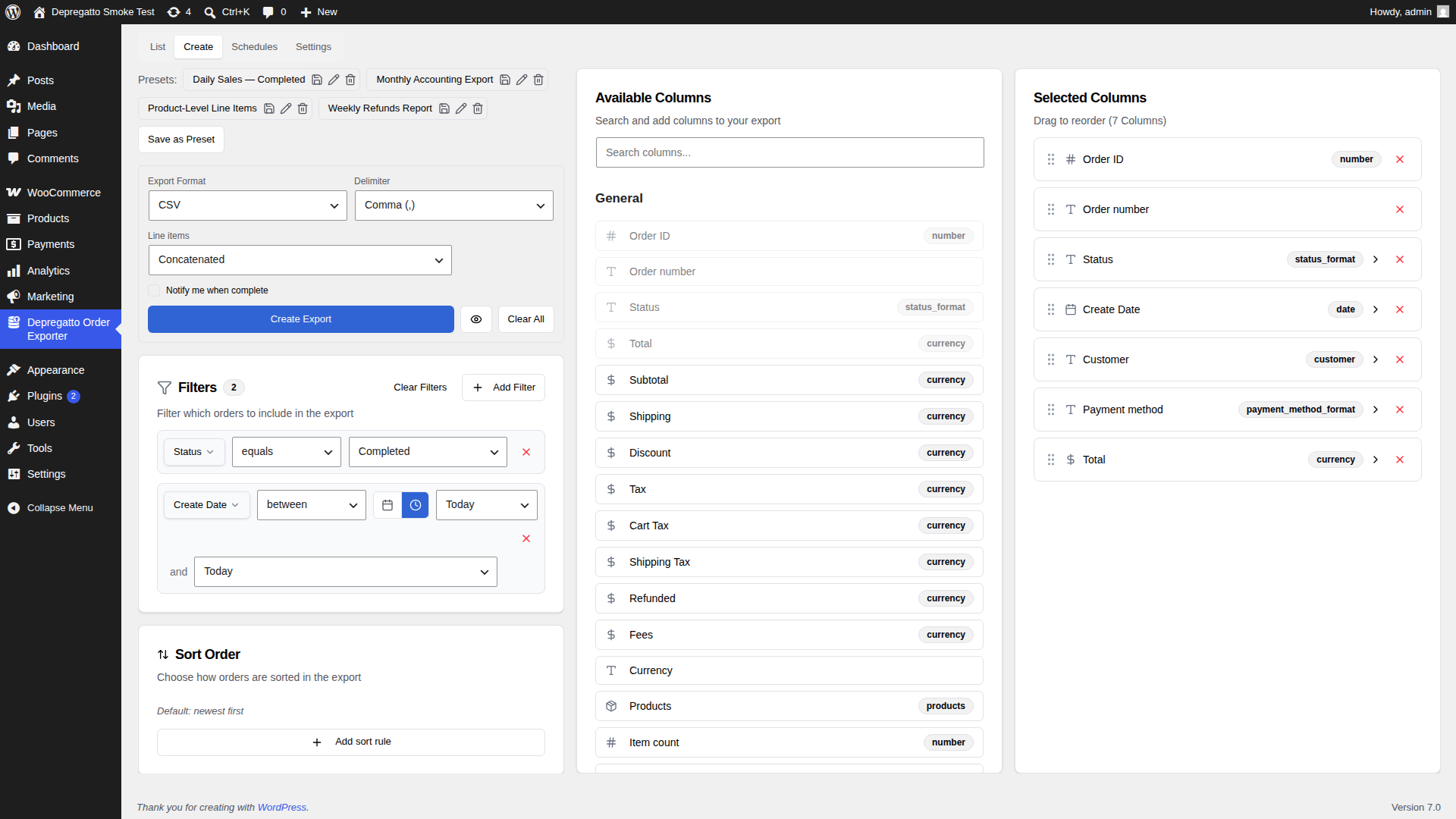
What Are Relative Dates
A regular date filter uses a fixed date you choose — for example, "orders placed after 1 January 2025". That date never changes.
A relative date filter uses a period that is calculated fresh every time an export runs — for example, "orders from the last 7 days". If you run the export today, it covers the last 7 days from today. If you run it again next week, it covers the last 7 days from next week.
This makes relative dates ideal for scheduled exports that should always cover the most recent period.
Switching Modes
When you add a date filter, it starts in calendar mode. To switch to relative mode, click the clock icon next to the date input. Click it again to switch back to calendar mode.
Presets
There are 18 built-in relative date presets to choose from:
- Today, Yesterday, Tomorrow
- This Week, Last Week, Next Week
- Last 7 Days, Last 14 Days, Last 30 Days, Last 60 Days, Last 90 Days
- This Month, Last Month
- This Quarter, Last Quarter
- This Year, Last Year
Select a preset from the dropdown and the date range is set automatically.
Custom Periods
If none of the presets fit your needs, you can define a custom period. Enter a number and choose a unit — days, weeks, months, or years. For example, entering "45" and choosing "days" creates a "Last 45 Days" filter.
With Schedules
Relative date filters are most powerful when combined with scheduled exports. For example:
- A daily schedule with "Last 7 Days" always exports the most recent week of orders.
- A monthly schedule with "Last Month" always exports the previous calendar month.
Save the configuration as a preset and link it to a schedule so everything stays in sync.