Presets
Save and reuse your export configurations.
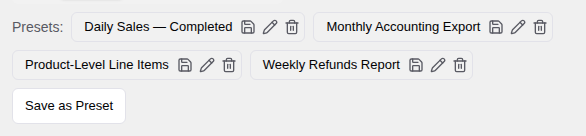
Saving a Preset
Once you have set up your columns, filters, sorting, and file format the way you want, you can save the entire configuration as a preset.
- Click Save as Preset at the top of the Create tab.
- Enter a name for the preset.
- Click Save.
All your settings — including column selection, column order, filters, and format options — are saved together.
Loading a Preset
To reuse a saved configuration:
- Click the preset dropdown at the top of the Create tab.
- Select the preset you want to use.
All settings from the preset are loaded immediately. You can then run the export as-is or make further adjustments.
Updating a Preset
If you load a preset and make changes, you can save those changes back to the same preset without creating a new one.
After making your changes, click Update Preset. The existing preset is updated with your new configuration.
Managing Presets
From the preset dropdown, you can also:
- Rename a preset to give it a new name.
- Delete a preset you no longer need.
Each preset must have a unique name. If you save a preset with the same name as an existing one, the existing preset is updated.
Presets and Schedules
Presets can be linked to schedules so that a recurring export always uses the latest version of a preset's configuration.
When a linked preset is updated, the schedule detects that a change has been made. You can then sync the schedule to apply the new configuration, or keep the old one. This makes it easy to fine-tune a recurring export without recreating the schedule from scratch.