Preview
Check your data before exporting
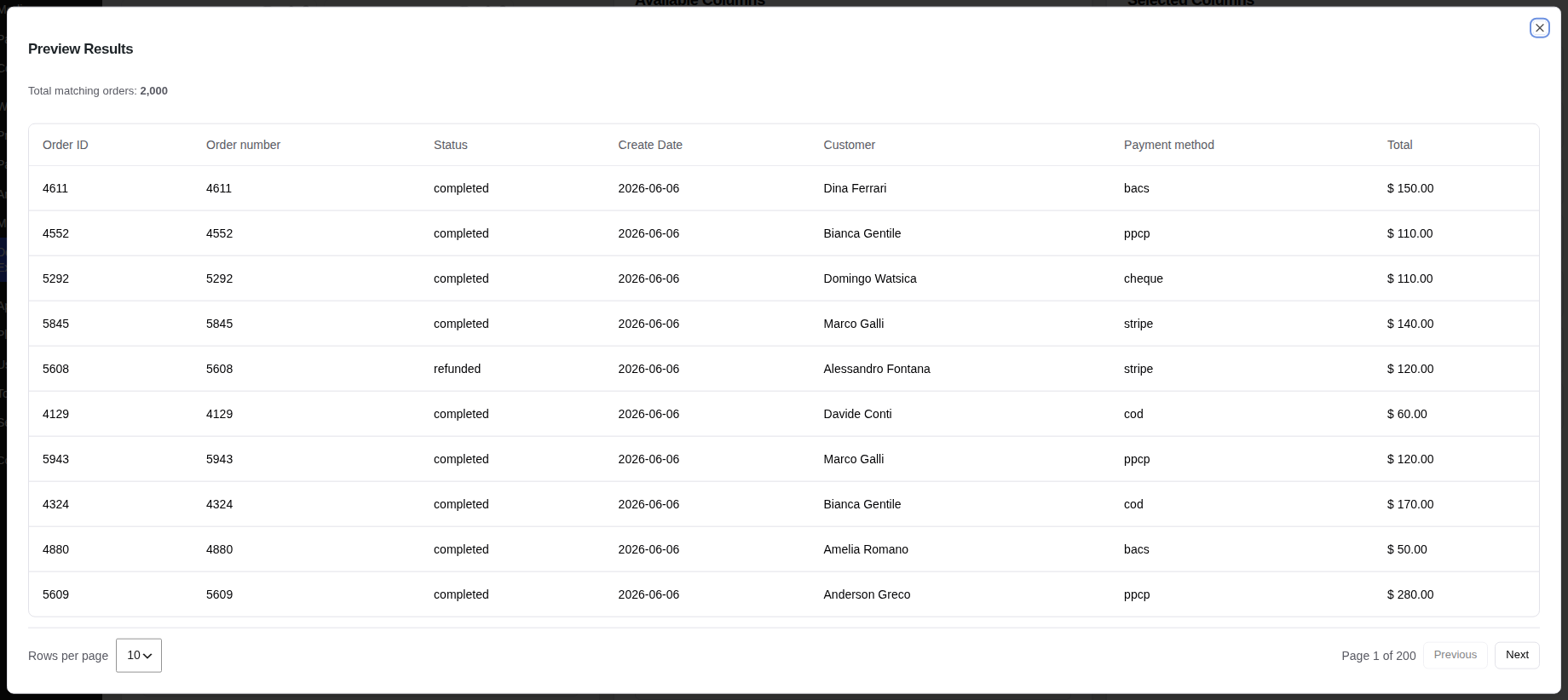
How to Preview
Click the eye icon when setting up an export in the Create tab to see a live preview of your data. You can also preview any existing export or schedule from the list — just click the eye icon on that row.
Paginated View
Preview displays a scrollable table showing the columns you have selected. Use the Previous and Next buttons to move between pages. You can choose how many rows to show at once: 10, 25, or 50 per page.
Row Count
The header above the table shows the total number of matching orders and the total number of export rows. These two numbers can differ when you use an expanded line items mode, where a single order produces multiple rows — one for each line item.
Real Data
Preview uses your actual order data with all your formatting settings applied. What you see in the preview is exactly what will appear in the downloaded export file.